I have seen that many of those using toolbars such as Wibiya have had to remove it because of interfering with the performance of some scripts like Scriptaculous and Prototype, while others have chosen to remove these scripts just to continue using the toolbar.

Well, for those who prefer to have a custom toolbar that does not give them such problems and allow them to continue using other scripts, here's how to create our own floating toolbar with a close option.

The toolbar contains a search box, link for feed subscription, link to follow on Twitter and Facebook, like button to share on Twitter or Facebook and translator in five languages.


You can see it working in this demo blog.
Adding a Custom Sticky Toolbar on Blogger

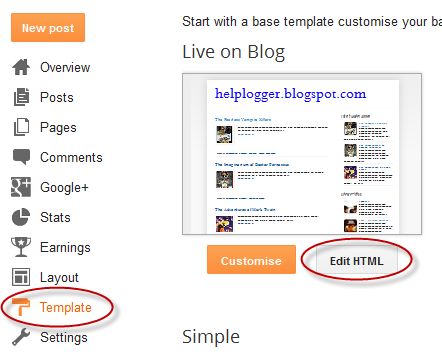
Step 1. Login to your Blogger account > select your blog > click on the "Template" option on the left side


Step 2. Click on the Edit HTML button on the right side > click anywhere inside the code area and press CTRL + F keys to open the Blogger search box

Step 3. Paste or type the following tag inside the search box and hit Enter to find it:
]]></b:skin>
Step 4. Just above ]]></b:skin> add the following CSS style:
#custom-toolbar {
overflow: auto;
position: fixed;
background: #1B1B1B url("https://blogger.googleusercontent.com/img/b/R29vZ2xl/AVvXsEj3q_yV4xKgcCNmg8qOFJp8G88Q8CTAbRoDMejmamFgcgqhKYSx4ZR2b9Ne5FB-rLVBxcnQCSmwiqgbGy65O3G1tYe7VFa3X-ZGeoBONnT4DjfJIBB9v8S1eATRdCnTkC8Rib8vdq_S1Q1V/s1600/pagelist.png") repeat-x scroll 0 bottom;
font: bold 13px/17px "Helvetica Neue",Helvetica,Arial,Geneva,sans-serif;
height: 33px;
margin: 0 auto;
width: 100%;
bottom:0px;
right:0;
}
.close-toolbar {
float: right;
margin-top:6px;
padding-right: 10px;
cursor: pointer;
}
.search-text {
color: #D1D1D1;
text-align: center;
border-radius: 10px;
}

.google_translate:hover img {
filter:alpha(opacity=0.90);
-moz-opacity: 0.90;
opacity: 0.90;
border:0;
}
Step 5. Now search for this tag:
</head>
Step 6. Just above the </head> tag add this script:
<script type='text/javascript'>
// Custom Toolbar for Blogger (helplogger.blogspot.com)
//<![CDATA[
var toolbar_blogger = new Array();
var toolbar_clear = new Array();
function toolbarFloat(toolb) {
toolbar_blogger[toolbar_blogger.length] = this;
var ftrpointer = eval(toolbar_blogger.length-1);
this.pagetop = 0;
this.cmode = (document.compatMode && document.compatMode!="BackCompat") ? document.documentElement : document.body;
this.toolbsrc = document.all? document.all[toolb] : document.getElementById(toolb);
this.toolbsrc.height = this.toolbsrc.offsetHeight;
this.toolbheight = this.cmode.clientHeight;
this.toolboffset = toolbGetOffsetY(toolbar_blogger[toolbpointer]);
var toolbbar = 'toolbar_clear['+toolbpointer+'] = setInterval("toolbarFloatInit(toolbar_blogger['+toolbpointer+'])",1);';
toolbbar = toolbbar;
eval(toolbbar);
}

function toolbGetOffsetY(toolb) {
var toolbTotOffset = parseInt(toolb.mtasrc.offsetTop);
var parentOffset = toolb.toolbsrc.offsetParent;
while ( parentOffset != null ) {
toolbTotOffset += parentOffset.offsetTop;
parentOffset = parentOffset.offsetParent;
}
return toolbTotOffset;
}
function toolbarFloatInit(toolb) {
toolb.pagetop = toolb.cmode.scrollTop;
toolb.toolbsrc.style.top = toolb.pagetop - toolb.mtaoffset + "px";
}
function closeTopAds() {
document.getElementById("custom-toolbar").style.visibility = "hidden";
}
//]]>
</script>
Step 7. Now search for the </body> tag and just above it, add this HTML code:
<div id='custom-toolbar'>
<img border='0' class='close-toolbar' onClick='closeTopAds();return false;' src='https://blogger.googleusercontent.com/img/b/R29vZ2xl/AVvXsEjOTgcx1FsY1i_G_QooyptzwXF005brtDo-RCdQkVVsRZe_Dt2dqrygWyHAjSEJCdDTWgD_vXY43GMBZp-79AOL3AYS4ugQXswBm0bLpszcg3zjrV-6NTKcGBvBtl1kCGMKCK5u82ZMYlXX/s1600/close_button.png' title='Close' width='17'/>

<table border='0' cellpadding='2'>
<tr>
<td style='padding-left:30px; padding-right:50px;'><form action='/search' id='search' method='get' name='searchForm' style='display:inline;'>
<input class='search-text' name='q' onblur='if (this.value == &quot;&quot;) this.value = &quot;Search here...&quot;;' onfocus='if (this.value == &quot;Search here...&quot;) this.value = &quot;&quot;;' size='28' type='text' value='Search here...'/></form></td>

<td style='padding-left:20px;'><a href='http://www.facebook.com/username' title='Follow on Facebook'><img src='https://blogger.googleusercontent.com/img/b/R29vZ2xl/AVvXsEgau1ZIxoqL_tk-0Hqefe0WCnLrPfV75Y2V7Y6LCsyLifAm8Gvwnb36HQ9rVl98Q512rKil43PpottwTQUXQnMmfZjWIFZmjsDUbbdikq4b1umRkoEkmMvJKbws_z84GEY6Uxp2ojoDGwtU/s1600/facebook-icon.png'/></a></td>

<td><a href='http://twitter.com/username' title='Follow on Twitter'><img src='https://blogger.googleusercontent.com/img/b/R29vZ2xl/AVvXsEgHgEMgu6k65zxxXd2skfRYpBxLIY3hANDSygU-o-KKcjS7-4yvwuJ3CHYLlPV1DRwMdyRWsKvapxEHOx9aUCYbM99O2zpqvtrE7-PqZ0rzOhHAcBy0ac2LzQ8loUtEN4q3NMgXL25JA2rP/s1600/twitter-icon.png'/></a></td>

<td><a expr:href='data:blog.homepageUrl + &quot;feeds/posts/default&quot;' title='Subscribe to Feed'><img src='https://blogger.googleusercontent.com/img/b/R29vZ2xl/AVvXsEjUWmbqyW1ffIcEnuWz8jypPF_DBz2gxXreVVup4yNtJ_D0rKH-TqGn9LTrcfCRvar71Bh9x72_pq32sYrA5l3Cbg6RDi0IgElUQWTb_4-Me73_qwIX-fKmJdOrbCPU2m_x-OH9uIPfa-AV/s1600/rss-feed-icon2.png'/></a></td>

<td style='padding-left:40px; padding-top: 5px;'><a class='twitter-share-button' data-count='horizontal' data-lang='en' href='http://twitter.com/share' title='Publish on Twitter'>Tweet</a><script src='http://platform.twitter.com/widgets.js' type='text/javascript'/></td>

<td><a href='http://www.facebook.com/sharer.php' name='fb_share' title='Publish on Facebook' type='button_count'>Share</a><script src='http://static.ak.fbcdn.net/connect.php/js/FB.Share' type='text/javascript'/></td>

  <td style='padding-left:60px;'><a class="google_translate" href='Javascript:void(0)' onclick='window.open(&quot;http://www.google.com/translate?u=&quot;+encodeURIComponent(location.href)+&quot;&amp;langpair=auto%7Cen&amp;hl=en&amp;ie=UTF8&quot;); return false;' rel='nofollow' title='English'><img align='absbottom' alt='English' border='0' height='24' src='https://blogger.googleusercontent.com/img/b/R29vZ2xl/AVvXsEgWYEgkjQ2kttxC-rPzgOY7vQFadNzMvwpeoiwmGGjXtFDCOUFAV7ki7lYz-ohIsU1X2fCnYxeP_ZRRhdnaB-ExhURg5-aBrqC1KGB9k0GidKSzUjAlPozuNYjG246BwQR0ndfkFpqWIVa9/s1600/United+Kingdom(Great+Britain).png' width='24'/></a></td>

<td><a class="google_translate" href='Javascript:void(0)' onclick="window.open(&quot;http://www.google.com/translate?u=&quot;+encodeURIComponent(location.href)+&quot;&amp;langpair=auto%7Cde&amp;hl=en&amp;ie=UTF8&quot;); return false;"><img alt="German" border="0" align="absbottom" title="German" height="24" src="https://blogger.googleusercontent.com/img/b/R29vZ2xl/AVvXsEiDXvU3WkIBnlMj3ryW9I0yAvc22zmU4xKUvQVBZz_2bxUyzi_8bTbHIvtjPBbEkPxKS1EYpxNrYSpxrt3It558RrECcZ0wJPnoUWhqycHDK7Bv9LRfp0BEvpAs2uin-FDo59UfAukIBdZ3/s1600/Germany.png" width="24"/></a></td>

<td><a class="google_translate" href='Javascript:void(0)' onclick='window.open(&quot;http://www.google.com/translate?u=&quot;+encodeURIComponent(location.href)+&quot;&amp;langpair=auto%7Cfr&amp;hl=en&amp;ie=UTF8&quot;); return false;' rel='nofollow' title='French'><img align='absbottom' alt='French' border='0' height='24' src='https://blogger.googleusercontent.com/img/b/R29vZ2xl/AVvXsEjF_hZ3S1PaHmK1cTsKij4EN-pn8hN75eVy1fkQ1Z__ENPs8SORmAPFAfEM5e98FAu9IpDCteCnDFyuvXDJd5KfMeY6WpJ8YSKADiCyog5HIkrFR1qoMpKN3qxsuwR608b7QOzMUGFJmC5I/s1600/France.png' width='24'/></a></td>

<td><a class="google_translate" href='Javascript:void(0)' onclick='window.open(&quot;http://www.google.com/translate?u=&quot;+encodeURIComponent(location.href)+&quot;&amp;langpair=auto%7Car&amp;hl=en&amp;ie=UTF8&quot;); return false;' rel='nofollow' title='Arabic'><img align='absbottom' alt='Arabic' border='0' height='24' src='https://blogger.googleusercontent.com/img/b/R29vZ2xl/AVvXsEjA4v8SkTuFkJtkJeHGGtBQ3exX2kzWrsVcrOx78iDhUNo2-05pWZvNkxoQh5QUhwXu7tvB1eqz2Kp-LewASBpBZZ43OXgZn_KYm4obvfjdBLLbruQYBJGceyE0E0LIwQFqB6_Wa3Y_g9b_/s1600/Saudi+Arabia.png' width='24'/></a></td>

<td><a class="google_translate" href='Javascript:void(0)' onclick='window.open(&quot;http://www.google.com/translate?u=&quot;+encodeURIComponent(location.href)+&quot;&amp;langpair=auto%7Czh-cn&amp;hl=en&amp;ie=UTF8&quot;); return false;' rel='nofollow' title='Chinese Simplified'><img align='absbottom' alt='Chinese Simplified' border='0' height='24' src='https://blogger.googleusercontent.com/img/b/R29vZ2xl/AVvXsEgJ5geFFJLFhPLn79LNxq3GCfT7F6kKAJOPniR5NOVupQiczemB24jcr4nBiY76_5B5WJ8cZwj6Bq0O6t4sw2T2kIbwk2imnapRFJTpGE7tLZBV-qP8nzKnE3IV9itw-RgEDBunepFUntaG/s1600/China.png' width='24'/></a></td>

</tr>
</table>
</div>
Finally, change what is in blue with the URLs of your Facebook and Twitter profiles.

If you want to add more items, such as a counter, links etc. add a line like this just before the </tr> tag:
<td>Add here the extra content</td>
Add the content where is indicated and that's it.

As you can see, it is not necessary to depend on external sites to have a toolbar, from now on you can have a floating sticky toolbar on your Blogger blog.

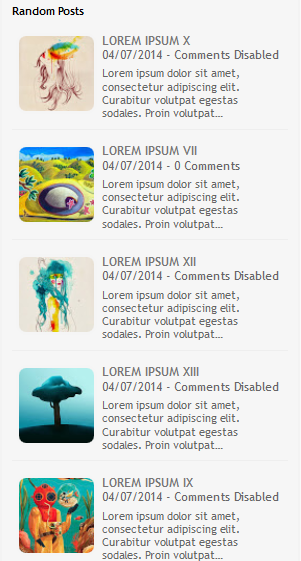
When your blog has too many posts, visitors don't always have the time or desire to go through all the posts written there in order to make an idea of the blog's content. Thus, a random posts widget that will allow visitors to find content more easily could be really useful. This tutorial will show you how to add a random posts widget to display a list of posts in a random order with thumbnails and excerpts.

random posts widget for blogger


Adding Random Posts with Thumbnails and Posts Summary on Blogger

Step 1. Login to your blogger account, select your blog and go to "Layout".

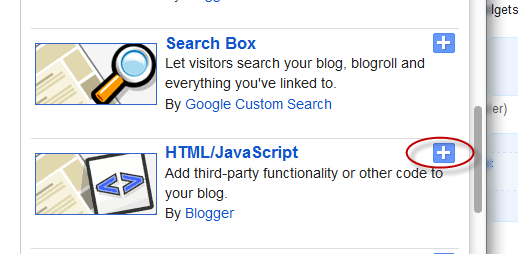
Step 2. Add new widget by clicking on the "Add a gadget" link and select "Html/JavaScript" from the popup window.
html javascript widget, blogger gadgets

Step 3. After adding the HTML/JavaScript, copy and paste the following script inside the empty Content box.
<style>
#random-posts img {
    border-radius: 10px;
    float: left;
    margin-right: 5px;
    width: 75px;
    height: 75px;
    background-color: #F5F5F5;
    padding: 3px;
    transition: all 0.2s linear 0s;
}

#random-posts img:hover {
    opacity: 0.6;
}

ul#random-posts {
    list-style-type: none;
    padding: 0px;
}

#random-posts a {
    font-size: 12px;
    text-transform: uppercase;
    padding: 0px auto 5px;
}

#random-posts a:hover {
    text-decoration: none;
}

.random-summary {
    font-size: 11px;
    background: none;
    padding: 5px;
    margin-right: 8px;
}

#random-posts li {
    margin-bottom: 10px;
    border-bottom: 1px solid #EEEEEE;
    padding: 4px;
}
</style>
<ul id='random-posts'>
<script type='text/javaScript'>
var randomposts_number = 5;
var randomposts_chars = 110;
var randomposts_details = 'yes';
var randomposts_comments = 'Comments';
var randomposts_commentsd = 'Comments Disabled';
var randomposts_current = [];
var total_randomposts = 0;
var randomposts_current = new Array(randomposts_number);

function randomposts(json) {
    total_randomposts = json.feed.openSearch$totalResults.$t
}
document.write('<script type=\"text/javascript\" src=\"/feeds/posts/default?alt=json-in-script&max-results=0&callback=randomposts\"><\/script>');

function getvalue() {
    for (var i = 0; i < randomposts_number; i++) {
        var found = false;
        var rndValue = get_random();
        for (var j = 0; j < randomposts_current.length; j++) {
            if (randomposts_current[j] == rndValue) {
                found = true;
                break
            }
        };
        if (found) {
            i--
        } else {
            randomposts_current[i] = rndValue
        }
    }
};

function get_random() {
    var ranNum = 1 + Math.round(Math.random() * (total_randomposts - 1));
    return ranNum
};
</script>
<script type='text/javaScript'>
function random_posts(json) {
    for (var i = 0; i < randomposts_number; i++) {
        var entry = json.feed.entry[i];
        var randompoststitle = entry.title.$t;
        if ('content' in entry) {
            var randompostsnippet = entry.content.$t
        } else {
            if ('summary' in entry) {
                var randompostsnippet = entry.summary.$t
            } else {
                var randompostsnippet = "";
            }
        };
        randompostsnippet = randompostsnippet.replace(/<[^>]*>/g, "");
        if (randompostsnippet.length < randomposts_chars) {
            var randomposts_snippet = randompostsnippet
        } else {
            randompostsnippet = randompostsnippet.substring(0, randomposts_chars);
            var whitespace = randompostsnippet.lastIndexOf(" ");
            randomposts_snippet = randompostsnippet.substring(0, whitespace) + "&#133;";
        };
        for (var j = 0; j < entry.link.length; j++) {
            if ('thr$total' in entry) {
                var randomposts_commentsnum = entry.thr$total.$t + ' ' + randomposts_comments
            } else {
                randomposts_commentsnum = randomposts_commentsd
            }; if (entry.link[j].rel == 'alternate') {
                var randompostsurl = entry.link[j].href;
                var randomposts_date = entry.published.$t;
                if ('media$thumbnail' in entry) {
                    var randompoststhumb = entry.media$thumbnail.url
                } else {
                    randompoststhumb = "https://blogger.googleusercontent.com/img/b/R29vZ2xl/AVvXsEjP4ytHTTs8ZWb7wxIJ4sgldy7s7oMLCJV1Rn80JMRgj0DFTP9_FpqswGiUvDgDujiUWsOVYSvR6gXRRZloS0FdeLJFHAiGEP7GdUvDoZsM5Q_vMNWedEte7BTEv16AmGjicGZS6IVAXuE/s1600/no_thumb.png"
                }
            }
        };
        document.write('<li>');
        document.write('<a href="' + randompostsurl + '" rel="nofollow"><img alt="' + randompoststitle + '" src="' + randompoststhumb + '"/></a>');
        document.write('<div><a href="' + randompostsurl + '" rel="nofollow">' + randompoststitle + '</a></div>');
        if (randomposts_details == 'yes') {
            document.write('<span><div  class="random-info">' + randomposts_date.substring(8, 10) + '.' + randomposts_date.substring(5, 7) + '.' + randomposts_date.substring(0, 4) + ' - ' + randomposts_commentsnum) + '</div></span>'
        };
        document.write('<br/><div class="random-summary">' + randomposts_snippet + '</div><div style="clear:both"></div></li>')
    }
};
getvalue();
for (var i = 0; i < randomposts_number; i++) {
    document.write('<script type=\"text/javascript\" src=\"/feeds/posts/default?alt=json-in-script&start-index=' + randomposts_current[i] + '&max-results=1&callback=random_posts\"><\/script>')
};
</script>
</ul>

Random Posts Options

  • Thumbnail dimensions: to change the size of the thumbnails in pixels, replace the 75px value.
  • Summary length: you can control the the length of the summary (in characters) by changing the 110 value from var randomposts_chars=110;
  • Post info: if you want to hide the post date and comment count change 'yes' from var randomposts_details='yes'; to 'no';
  • Font Size for Posts Titles and Summary: to modify the font size for the post snippet modify the 11px value and for the posts title, the 12px value;
Click on the "Save" button and View your blog. The sidebar will display a random posts widget on each of your blog pages.
When we add a widget on Blogger, the thumbnails will maintain a default size of 72 x 72px which might not look good if we try to make them larger using only CSS. However, with a bit of JavaScript we'll be able to replace the thumbnail with the same image of higher resolution and this way, larger images will no longer appear blurry.

So this tutorial will show you how to increase the thumbnail resolution size of the popular posts Blogger widget, even though we can apply this trick on any of the blog widgets.


Changing the Thumbnail Size for the Popular Posts Widget

Step 1. First, let's add the Popular posts gadget by going to "Layout" > click on the "Add a gadget" link and select "Popular Posts" from the popup window.

adding popular posts gadget

Step 2. Next, go to "Template" > click on the "Edit HTML" button > click anywhere inside the code area to open the Blogger search box using the CTRL + F keys.

edit blogger template html

Step 3. Type or paste the following tag inside the search box then hit Enter to find it:
</head>
After you found the </head> tag, add this CSS above it:
<style type='text/css'>
.PopularPosts .item-thumbnail a {
clip: auto;
display: block;
height: 130px;
margin: 0 0px 5px;
overflow: hidden;
width: 210px;
border: 2px solid #EEEEEE;
border-radius: 20px;
}
.PopularPosts .item-thumbnail img {
position: relative;
top: -30px;
transition:all .2s linear;
 -o-transition:all .5s linear;
-moz-transition:all .2s linear;
-webkit-transition:all .2s linear;
}
.PopularPosts .item-thumbnail img:hover{
opacity:.6;
filter:alpha(opacity=60)
}
.PopularPosts .widget-content ul li {
background: #F9F9F9;
border: 2px solid #EEEEEE;
border-radius: 10px;
box-shadow: 0 4px 10px #EEEEEE;
color: #555555;
padding: 10px;
margin-bottom: 5px;
}
.PopularPosts .item-title {
clear: both
font: 14px Cambria,Georgia, sans-serif;
color: #2288BB;
font-weight: bold;
text-transform: uppercase;
text-align: center;
}
.PopularPosts .item-snippet {
display: none;
}
.widget .widget-item-control a img {
height: 18px;
width: 18px;
}
</style>
Step 4. Now search for this tag:
</body>
And just above it, add this script:
<script type='text/javascript'>                  
function changeThumbSize(id,size){
var blogGadget = document.getElementById(id);
var replacement = blogGadget.innerHTML;
blogGadget.innerHTML = replacement.replace(/w72-h72-p-k-no-nu/g,"s"+size+"-c");
var thumbnails = blogGadget.getElementsByTagName("img");
for(var i=0;i&lt;thumbnails.length;i++){
thumbnails[i].width = size;
thumbnails[i].height = size;
}
}
changeThumbSize("PopularPosts1",210);                  
</script>
Highlighted in red is the widget ID for the Popular Posts gadget. To change the thumbnail size for any of your blog widgets, find the gadget/widget ID and then add a line below this part:
changeThumbSize("PopularPosts1",210);
changeThumbSize("widget-ID-HERE",210);
Then replace widget-ID-HERE text with the ID of that widget/gadget.

Note: you won't see the changes if the widget has a class selector - for this you may need to change class with id and replace the dot ".>" symbol with "#" in the CSS code.

If you don't know how to find the id of a particular widget, please check out this tutorial on How to Use Firebug to Design a Blogger blog.

Step 5. Finally, press the "Save Template" to save the changes and this is how you can increase thumbnail resolution on Blogger. Enjoy!
Here is an amazing CSS image effect to reveal more information on your images with a really cool CSS3 hover animation. This is just perfect for blogs dedicated to music or if you just want to show off the music that you love.

So, what we will do in this tutorial is to take an image for our album cover, add some fancy CSS3 transitions and transforms that, on hover, will slide out a pure CSS vinyl record behind it. Finally, we will add some basic HTML to our post or page where we need to apply this amazing effect.

Demo: hover over the album cover and see how CSS reveals further information:

The Wall is the eleventh studio album by the English progressive rock group Pink Floyd.

How to Apply The Animated Vinyl Record on Blogger Images

Step 1. From your Blogger's Dashboard, go to "Template" > click on the "Edit HTML" button:


Step 2. Click anywhere inside the code area and press the CTRL + F keys to open the search box:
Step 3. Type or paste inside the search box the tag below and hit Enter to find it:
]]></b:skin>
Step 4. Just above ]]></b:skin> add the following code:


.info {
position: absolute;
z-index: 3;
top: 20%;
zoom: 1;
filter: alpha(opacity=0);
opacity: 0;
padding: 10px;
text-align: center;
color: #eee;
font-size: 13px;
font-weight: bold;
background: #333;
background: rgba(0,0,0,.7);
-moz-transition:all linear 0.5s 0s;
-webkit-transition:all linear 0.5s 0s;
transition:all ease 0.5s 0s;
}
.case:hover .info, .case:hover .vinyl {
filter: alpha(opacity=100);
opacity:1;
}
.case {
position:relative;
display:block;
width:185px;
height:185px;
-webkit-border-radius:3px;
border-radius:3px;
z-index:2;
-webkit-box-shadow: 0px 0px 2px 0px rgba(0, 0, 0, 0.2);
box-shadow: 0px 0px 2px 0px rgba(0, 0, 0, 0.2);
margin:0 auto;
}
.case:after {
position:absolute;
display:block;
content: "";
width:265px;
height:10px;
left:-40px;
bottom:-8px;
z-index:1;
background: -moz-radial-gradient(center, ellipse cover,  rgba(0,0,0,0.45) 0%, rgba(0,0,0,0) 50%, rgba(225,225,225,0) 51%, rgba(246,246,246,0) 100%);
    background: -webkit-gradient(radial, center center, 0px, center center, 100%, color-stop(0%,rgba(0,0,0,0.45)), color-stop(50%,rgba(0,0,0,0)), color-stop(51%,rgba(225,225,225,0)), color-stop(100%,rgba(246,246,246,0)));
    background: -webkit-radial-gradient(center, ellipse cover,  rgba(0,0,0,0.45) 0%,rgba(0,0,0,0) 50%,rgba(225,225,225,0) 51%,rgba(246,246,246,0) 100%);
    background: -o-radial-gradient(center, ellipse cover,  rgba(0,0,0,0.45) 0%,rgba(0,0,0,0) 50%,rgba(225,225,225,0) 51%,rgba(246,246,246,0) 100%);
    background: -ms-radial-gradient(center, ellipse cover,  rgba(0,0,0,0.45) 0%,rgba(0,0,0,0) 50%,rgba(225,225,225,0) 51%,rgba(246,246,246,0) 100%);
    background: radial-gradient(center, ellipse cover,  rgba(0,0,0,0.45) 0%,rgba(0,0,0,0) 50%,rgba(225,225,225,0) 51%,rgba(246,246,246,0) 100%);
}
.case .cover{
position:absolute;
top:0;
left:0;
width:100%;
height:100%;
z-index:2;
-webkit-border-radius:3px;
border-radius:3px;
-webkit-box-shadow: 2px 0px 2px 0px rgba(0, 0, 0, 0.6);
box-shadow: 2px 0px 2px 0px rgba(0, 0, 0, 0.6);
}
.case .overlay{
position:absolute;
display:block;
top:0;
left:0;
z-index:3;
width:100%;
height:100%;
-webkit-box-shadow: inset 1px 1px 4px 0px rgba(255, 255, 255, 0.45),inset 1px 1px 2px 0px rgba(255,255, 255, 0.5),inset -1px -1px 2px 0px rgba(255,255, 255, 0.5);
    box-shadow: inset 1px 1px 4px 0px rgba(255,255, 255, 0.45),inset 1px 1px 2px 0px rgba(255,255, 255, 0.5),inset -1px -1px 2px 0px rgba(255,255, 255, 0.5);
-webkit-border-radius:3px;
border-radius:3px;
border:1px solid rgba(0, 0, 0, 0.35);
}
.case .overlay:before{
    position:absolute;
    display:block;
    content: "";
    top:0;
    left:0;
    z-index:4;
    width:100%;
    height:100%;
    background: -moz-linear-gradient(-55deg,  rgba(255,255,255,0.1) 0%, rgba(244,244,244,0.35) 50%, rgba(225,225,225,0) 51%, rgba(246,246,246,0) 100%); /* FF3.6+ */
    background: -webkit-gradient(linear, left top, right bottom, color-stop(0%,rgba(255,255,255,0.1)), color-stop(50%,rgba(244,244,244,0.35)), color-stop(51%,rgba(225,225,225,0)), color-stop(100%,rgba(246,246,246,0))); /* Chrome,Safari4+ */
    background: -webkit-linear-gradient(-45deg,  rgba(255,255,255,0.1) 0%,rgba(244,244,244,0.35) 50%,rgba(225,225,225,0) 51%,rgba(246,246,246,0) 100%); /* Chrome10+,Safari5.1+ */
    background: -o-linear-gradient(-45deg,  rgba(255,255,255,0.1) 0%,rgba(244,244,244,0.35) 50%,rgba(225,225,225,0) 51%,rgba(246,246,246,0) 100%); /* Opera 11.10+ */
    background: -ms-linear-gradient(-45deg,  rgba(255,255,255,0.1) 0%,rgba(244,244,244,0.35) 50%,rgba(225,225,225,0) 51%,rgba(246,246,246,0) 100%); /* IE10+ */
    background: linear-gradient(-55deg,  rgba(255,255,255,0.1) 0%,rgba(244,244,244,0.35) 50%,rgba(225,225,225,0) 51%,rgba(246,246,246,0) 100%); /* W3C */
    -webkit-border-radius:3px;
    border-radius:3px;
}
.vinyl {
    position:absolute;
    z-index:1;
    bottom:4px;
    left:5px;
    display:block;
    width:175px;
    height:175px;
    border-radius:200px;
    background: -moz-linear-gradient(top,  rgba(45,45,45,1) 0%, rgba(0,0,0,1) 100%);
    background: -webkit-gradient(linear, left top, left bottom, color-stop(0%,rgba(45,45,45,1)), color-stop(100%,rgba(0,0,0,1)));
    background: -webkit-linear-gradient(top,  rgba(45,45,45,1) 0%,rgba(0,0,0,1) 100%);
    background: -o-linear-gradient(top,  rgba(45,45,45,1) 0%,rgba(0,0,0,1) 100%);
    background: -ms-linear-gradient(top,  rgba(45,45,45,1) 0%,rgba(0,0,0,1) 100%);
    background: linear-gradient(top,  rgba(45,45,45,1) 0%,rgba(0,0,0,1) 100%);
    -webkit-box-shadow: inset 0px 1px 3px 0px rgba(255, 255, 255, 1);
    box-shadow: inset 0px 1px 0px 0px rgba(255, 255, 255, 0.35), inset 0px -1px 1px 0px rgba(255, 255, 255, 0.25), 0px 0px 8px 0px rgba(0, 0, 0, 0.4);
    border:1px solid #595959;
    transition: all 500ms ease-in-out;
    -moz-transition: all 500ms ease-in-out;
    -webkit-transition: all 500ms ease-in-out;
    -o-transition: all 500ms ease-in-out;
}
.case:hover .vinyl {
    animation: spin 600ms ease-in-out;
    -moz-animation: spin 600ms ease-in-out;
    -webkit-animation: spin 600ms ease-in-out;
    left:98px;
}
.vinyl:before {
    position:absolute;
    display:block;
    content: "";
    width:100%;
    height:100%;
    border-radius:100%;
    background: -moz-radial-gradient(center, ellipse cover,  rgba(38,38,38,0.4) 0%, rgba(89,89,89,0.4) 1%, rgba(35,35,35,0.4) 2%, rgba(86,86,86,0.4) 3%, rgba(35,35,35,0.4) 4%, rgba(86,86,86,0.4) 5%, rgba(35,35,35,0.4) 6%, rgba(86,86,86,0.4) 7%, rgba(35,35,35,0.4) 8%, rgba(86,86,86,0.4) 9%, rgba(35,35,35,0.4) 10%, rgba(86,86,86,0.4) 11%, rgba(35,35,35,0.4) 12%, rgba(86,86,86,0.4) 13%, rgba(35,35,35,0.4) 14%, rgba(86,86,86,0.4) 15%, rgba(35,35,35,0.4) 16%, rgba(86,86,86,0.4) 17%, rgba(35,35,35,0.4) 18%, rgba(86,86,86,0.4) 19%, rgba(35,35,35,0.4) 20%, rgba(86,86,86,0.4) 21%, rgba(35,35,35,0.4) 22%, rgba(86,86,86,0.4) 23%, rgba(35,35,35,0.4) 24%, rgba(86,86,86,0.4) 25%, rgba(35,35,35,0.4) 26%, rgba(86,86,86,0.4) 27%, rgba(35,35,35,0.4) 28%, rgba(86,86,86,0.4) 29%, rgba(35,35,35,0.4) 30%, rgba(86,86,86,0.4) 31%, rgba(35,35,35,0.4) 32%, rgba(86,86,86,0.4) 33%, rgba(35,35,35,0.4) 34%, rgba(86,86,86,0.4) 35%, rgba(35,35,35,0.4) 36%, rgba(86,86,86,0.4) 37%, rgba(35,35,35,0.4) 38%, rgba(86,86,86,0.4) 39%, rgba(35,35,35,0.4) 40%, rgba(86,86,86,0.4) 41%, rgba(35,35,35,0.4) 42%, rgba(86,86,86,0.4) 43%, rgba(35,35,35,0.4) 44%, rgba(86,86,86,0.4) 45%, rgba(35,35,35,0.4) 46%, rgba(86,86,86,0.4) 47%, rgba(35,35,35,0.4) 48%, rgba(86,86,86,0.4) 49%, rgba(35,35,35,0.4) 50%, rgba(86,86,86,0.4) 51%, rgba(35,35,35,0.4) 52%, rgba(86,86,86,0.4) 53%, rgba(35,35,35,0.4) 54%, rgba(86,86,86,0.4) 55%, rgba(35,35,35,0.4) 56%, rgba(86,86,86,0.4) 57%, rgba(35,35,35,0.4) 58%, rgba(86,86,86,0.4) 59%, rgba(35,35,35,0.4) 60%, rgba(86,86,86,0.4) 61%, rgba(35,35,35,0.4) 62%, rgba(86,86,86,0.4) 63%, rgba(35,35,35,0.4) 64%, rgba(86,86,86,0.4) 65%, rgba(35,35,35,0.4) 66%, rgba(86,86,86,0.4) 67%, rgba(35,35,35,0.4) 68%, rgba(86,86,86,0.4) 69%, rgba(35,35,35,0.4) 70%, rgba(86,86,86,0.4) 71%, rgba(35,35,35,0.4) 72%, rgba(86,86,86,0.4) 73%, rgba(35,35,35,0.4) 74%, rgba(86,86,86,0.4) 75%, rgba(35,35,35,0.4) 76%, rgba(86,86,86,0.4) 77%, rgba(35,35,35,0.4) 78%, rgba(86,86,86,0.4) 79%, rgba(35,35,35,0.4) 80%, rgba(86,86,86,0.4) 81%, rgba(35,35,35,0.4) 82%, rgba(86,86,86,0.4) 83%, rgba(35,35,35,0.4) 84%, rgba(86,86,86,0.4) 85%, rgba(35,35,35,0.4) 86%, rgba(86,86,86,0.4) 87%, rgba(35,35,35,0.4) 88%, rgba(86,86,86,0.4) 89%, rgba(35,35,35,0.4) 90%, rgba(86,86,86,0.4) 91%, rgba(35,35,35,0.4) 92%, rgba(86,86,86,0.4) 93%, rgba(35,35,35,0.4) 94%, rgba(86,86,86,0.4) 95%, rgba(35,35,35,0.4) 96%, rgba(86,86,86,0.4) 97%, rgba(86,86,86,0.4) 97%, rgba(35,35,35,0.4) 98%);
    background: -webkit-gradient(radial, center center, 0px, center center, 100%, color-stop(0%,rgba(38,38,38,0.4)), color-stop(1%,rgba(89,89,89,0.4)), color-stop(2%,rgba(35,35,35,0.4)), color-stop(3%,rgba(86,86,86,0.4)), color-stop(4%,rgba(35,35,35,0.4)), color-stop(5%,rgba(86,86,86,0.4)), color-stop(6%,rgba(35,35,35,0.4)), color-stop(7%,rgba(86,86,86,0.4)), color-stop(8%,rgba(35,35,35,0.4)), color-stop(9%,rgba(86,86,86,0.4)), color-stop(10%,rgba(35,35,35,0.4)), color-stop(11%,rgba(86,86,86,0.4)), color-stop(12%,rgba(35,35,35,0.4)), color-stop(13%,rgba(86,86,86,0.4)), color-stop(14%,rgba(35,35,35,0.4)), color-stop(15%,rgba(86,86,86,0.4)), color-stop(16%,rgba(35,35,35,0.4)), color-stop(17%,rgba(86,86,86,0.4)), color-stop(18%,rgba(35,35,35,0.4)), color-stop(19%,rgba(86,86,86,0.4)), color-stop(20%,rgba(35,35,35,0.4)), color-stop(21%,rgba(86,86,86,0.4)), color-stop(22%,rgba(35,35,35,0.4)), color-stop(23%,rgba(86,86,86,0.4)), color-stop(24%,rgba(35,35,35,0.4)), color-stop(25%,rgba(86,86,86,0.4)), color-stop(26%,rgba(35,35,35,0.4)), color-stop(27%,rgba(86,86,86,0.4)), color-stop(28%,rgba(35,35,35,0.4)), color-stop(29%,rgba(86,86,86,0.4)), color-stop(30%,rgba(35,35,35,0.4)), color-stop(31%,rgba(86,86,86,0.4)), color-stop(32%,rgba(35,35,35,0.4)), color-stop(33%,rgba(86,86,86,0.4)), color-stop(34%,rgba(35,35,35,0.4)), color-stop(35%,rgba(86,86,86,0.4)), color-stop(36%,rgba(35,35,35,0.4)), color-stop(37%,rgba(86,86,86,0.4)), color-stop(38%,rgba(35,35,35,0.4)), color-stop(39%,rgba(86,86,86,0.4)), color-stop(40%,rgba(35,35,35,0.4)), color-stop(41%,rgba(86,86,86,0.4)), color-stop(42%,rgba(35,35,35,0.4)), color-stop(43%,rgba(86,86,86,0.4)), color-stop(44%,rgba(35,35,35,0.4)), color-stop(45%,rgba(86,86,86,0.4)), color-stop(46%,rgba(35,35,35,0.4)), color-stop(47%,rgba(86,86,86,0.4)), color-stop(48%,rgba(35,35,35,0.4)), color-stop(49%,rgba(86,86,86,0.4)), color-stop(50%,rgba(35,35,35,0.4)), color-stop(51%,rgba(86,86,86,0.4)), color-stop(52%,rgba(35,35,35,0.4)), color-stop(53%,rgba(86,86,86,0.4)), color-stop(54%,rgba(35,35,35,0.4)), color-stop(55%,rgba(86,86,86,0.4)), color-stop(56%,rgba(35,35,35,0.4)), color-stop(57%,rgba(86,86,86,0.4)), color-stop(58%,rgba(35,35,35,0.4)), color-stop(59%,rgba(86,86,86,0.4)), color-stop(60%,rgba(35,35,35,0.4)), color-stop(61%,rgba(86,86,86,0.4)), color-stop(62%,rgba(35,35,35,0.4)), color-stop(63%,rgba(86,86,86,0.4)), color-stop(64%,rgba(35,35,35,0.4)), color-stop(65%,rgba(86,86,86,0.4)), color-stop(66%,rgba(35,35,35,0.4)), color-stop(67%,rgba(86,86,86,0.4)), color-stop(68%,rgba(35,35,35,0.4)), color-stop(69%,rgba(86,86,86,0.4)), color-stop(70%,rgba(35,35,35,0.4)), color-stop(71%,rgba(86,86,86,0.4)), color-stop(72%,rgba(35,35,35,0.4)), color-stop(73%,rgba(86,86,86,0.4)), color-stop(74%,rgba(35,35,35,0.4)), color-stop(75%,rgba(86,86,86,0.4)), color-stop(76%,rgba(35,35,35,0.4)), color-stop(77%,rgba(86,86,86,0.4)), color-stop(78%,rgba(35,35,35,0.4)), color-stop(79%,rgba(86,86,86,0.4)), color-stop(80%,rgba(35,35,35,0.4)), color-stop(81%,rgba(86,86,86,0.4)), color-stop(82%,rgba(35,35,35,0.4)), color-stop(83%,rgba(86,86,86,0.4)), color-stop(84%,rgba(35,35,35,0.4)), color-stop(85%,rgba(86,86,86,0.4)), color-stop(86%,rgba(35,35,35,0.4)), color-stop(87%,rgba(86,86,86,0.4)), color-stop(88%,rgba(35,35,35,0.4)), color-stop(89%,rgba(86,86,86,0.4)), color-stop(90%,rgba(35,35,35,0.4)), color-stop(91%,rgba(86,86,86,0.4)), color-stop(92%,rgba(35,35,35,0.4)), color-stop(93%,rgba(86,86,86,0.4)), color-stop(94%,rgba(35,35,35,0.4)), color-stop(95%,rgba(86,86,86,0.4)), color-stop(96%,rgba(35,35,35,0.4)), color-stop(97%,rgba(86,86,86,0.4)), color-stop(97%,rgba(86,86,86,0.4)), color-stop(98%,rgba(35,35,35,0.4)));
    background: -webkit-radial-gradient(center, ellipse cover,  rgba(38,38,38,0.4) 0%,rgba(89,89,89,0.4) 1%,rgba(35,35,35,0.4) 2%,rgba(86,86,86,0.4) 3%,rgba(35,35,35,0.4) 4%,rgba(86,86,86,0.4) 5%,rgba(35,35,35,0.4) 6%,rgba(86,86,86,0.4) 7%,rgba(35,35,35,0.4) 8%,rgba(86,86,86,0.4) 9%,rgba(35,35,35,0.4) 10%,rgba(86,86,86,0.4) 11%,rgba(35,35,35,0.4) 12%,rgba(86,86,86,0.4) 13%,rgba(35,35,35,0.4) 14%,rgba(86,86,86,0.4) 15%,rgba(35,35,35,0.4) 16%,rgba(86,86,86,0.4) 17%,rgba(35,35,35,0.4) 18%,rgba(86,86,86,0.4) 19%,rgba(35,35,35,0.4) 20%,rgba(86,86,86,0.4) 21%,rgba(35,35,35,0.4) 22%,rgba(86,86,86,0.4) 23%,rgba(35,35,35,0.4) 24%,rgba(86,86,86,0.4) 25%,rgba(35,35,35,0.4) 26%,rgba(86,86,86,0.4) 27%,rgba(35,35,35,0.4) 28%,rgba(86,86,86,0.4) 29%,rgba(35,35,35,0.4) 30%,rgba(86,86,86,0.4) 31%,rgba(35,35,35,0.4) 32%,rgba(86,86,86,0.4) 33%,rgba(35,35,35,0.4) 34%,rgba(86,86,86,0.4) 35%,rgba(35,35,35,0.4) 36%,rgba(86,86,86,0.4) 37%,rgba(35,35,35,0.4) 38%,rgba(86,86,86,0.4) 39%,rgba(35,35,35,0.4) 40%,rgba(86,86,86,0.4) 41%,rgba(35,35,35,0.4) 42%,rgba(86,86,86,0.4) 43%,rgba(35,35,35,0.4) 44%,rgba(86,86,86,0.4) 45%,rgba(35,35,35,0.4) 46%,rgba(86,86,86,0.4) 47%,rgba(35,35,35,0.4) 48%,rgba(86,86,86,0.4) 49%,rgba(35,35,35,0.4) 50%,rgba(86,86,86,0.4) 51%,rgba(35,35,35,0.4) 52%,rgba(86,86,86,0.4) 53%,rgba(35,35,35,0.4) 54%,rgba(86,86,86,0.4) 55%,rgba(35,35,35,0.4) 56%,rgba(86,86,86,0.4) 57%,rgba(35,35,35,0.4) 58%,rgba(86,86,86,0.4) 59%,rgba(35,35,35,0.4) 60%,rgba(86,86,86,0.4) 61%,rgba(35,35,35,0.4) 62%,rgba(86,86,86,0.4) 63%,rgba(35,35,35,0.4) 64%,rgba(86,86,86,0.4) 65%,rgba(35,35,35,0.4) 66%,rgba(86,86,86,0.4) 67%,rgba(35,35,35,0.4) 68%,rgba(86,86,86,0.4) 69%,rgba(35,35,35,0.4) 70%,rgba(86,86,86,0.4) 71%,rgba(35,35,35,0.4) 72%,rgba(86,86,86,0.4) 73%,rgba(35,35,35,0.4) 74%,rgba(86,86,86,0.4) 75%,rgba(35,35,35,0.4) 76%,rgba(86,86,86,0.4) 77%,rgba(35,35,35,0.4) 78%,rgba(86,86,86,0.4) 79%,rgba(35,35,35,0.4) 80%,rgba(86,86,86,0.4) 81%,rgba(35,35,35,0.4) 82%,rgba(86,86,86,0.4) 83%,rgba(35,35,35,0.4) 84%,rgba(86,86,86,0.4) 85%,rgba(35,35,35,0.4) 86%,rgba(86,86,86,0.4) 87%,rgba(35,35,35,0.4) 88%,rgba(86,86,86,0.4) 89%,rgba(35,35,35,0.4) 90%,rgba(86,86,86,0.4) 91%,rgba(35,35,35,0.4) 92%,rgba(86,86,86,0.4) 93%,rgba(35,35,35,0.4) 94%,rgba(86,86,86,0.4) 95%,rgba(35,35,35,0.4) 96%,rgba(86,86,86,0.4) 97%,rgba(86,86,86,0.4) 97%,rgba(35,35,35,0.4) 98%);
    background: -o-radial-gradient(center, ellipse cover,  rgba(38,38,38,0.4) 0%,rgba(89,89,89,0.4) 1%,rgba(35,35,35,0.4) 2%,rgba(86,86,86,0.4) 3%,rgba(35,35,35,0.4) 4%,rgba(86,86,86,0.4) 5%,rgba(35,35,35,0.4) 6%,rgba(86,86,86,0.4) 7%,rgba(35,35,35,0.4) 8%,rgba(86,86,86,0.4) 9%,rgba(35,35,35,0.4) 10%,rgba(86,86,86,0.4) 11%,rgba(35,35,35,0.4) 12%,rgba(86,86,86,0.4) 13%,rgba(35,35,35,0.4) 14%,rgba(86,86,86,0.4) 15%,rgba(35,35,35,0.4) 16%,rgba(86,86,86,0.4) 17%,rgba(35,35,35,0.4) 18%,rgba(86,86,86,0.4) 19%,rgba(35,35,35,0.4) 20%,rgba(86,86,86,0.4) 21%,rgba(35,35,35,0.4) 22%,rgba(86,86,86,0.4) 23%,rgba(35,35,35,0.4) 24%,rgba(86,86,86,0.4) 25%,rgba(35,35,35,0.4) 26%,rgba(86,86,86,0.4) 27%,rgba(35,35,35,0.4) 28%,rgba(86,86,86,0.4) 29%,rgba(35,35,35,0.4) 30%,rgba(86,86,86,0.4) 31%,rgba(35,35,35,0.4) 32%,rgba(86,86,86,0.4) 33%,rgba(35,35,35,0.4) 34%,rgba(86,86,86,0.4) 35%,rgba(35,35,35,0.4) 36%,rgba(86,86,86,0.4) 37%,rgba(35,35,35,0.4) 38%,rgba(86,86,86,0.4) 39%,rgba(35,35,35,0.4) 40%,rgba(86,86,86,0.4) 41%,rgba(35,35,35,0.4) 42%,rgba(86,86,86,0.4) 43%,rgba(35,35,35,0.4) 44%,rgba(86,86,86,0.4) 45%,rgba(35,35,35,0.4) 46%,rgba(86,86,86,0.4) 47%,rgba(35,35,35,0.4) 48%,rgba(86,86,86,0.4) 49%,rgba(35,35,35,0.4) 50%,rgba(86,86,86,0.4) 51%,rgba(35,35,35,0.4) 52%,rgba(86,86,86,0.4) 53%,rgba(35,35,35,0.4) 54%,rgba(86,86,86,0.4) 55%,rgba(35,35,35,0.4) 56%,rgba(86,86,86,0.4) 57%,rgba(35,35,35,0.4) 58%,rgba(86,86,86,0.4) 59%,rgba(35,35,35,0.4) 60%,rgba(86,86,86,0.4) 61%,rgba(35,35,35,0.4) 62%,rgba(86,86,86,0.4) 63%,rgba(35,35,35,0.4) 64%,rgba(86,86,86,0.4) 65%,rgba(35,35,35,0.4) 66%,rgba(86,86,86,0.4) 67%,rgba(35,35,35,0.4) 68%,rgba(86,86,86,0.4) 69%,rgba(35,35,35,0.4) 70%,rgba(86,86,86,0.4) 71%,rgba(35,35,35,0.4) 72%,rgba(86,86,86,0.4) 73%,rgba(35,35,35,0.4) 74%,rgba(86,86,86,0.4) 75%,rgba(35,35,35,0.4) 76%,rgba(86,86,86,0.4) 77%,rgba(35,35,35,0.4) 78%,rgba(86,86,86,0.4) 79%,rgba(35,35,35,0.4) 80%,rgba(86,86,86,0.4) 81%,rgba(35,35,35,0.4) 82%,rgba(86,86,86,0.4) 83%,rgba(35,35,35,0.4) 84%,rgba(86,86,86,0.4) 85%,rgba(35,35,35,0.4) 86%,rgba(86,86,86,0.4) 87%,rgba(35,35,35,0.4) 88%,rgba(86,86,86,0.4) 89%,rgba(35,35,35,0.4) 90%,rgba(86,86,86,0.4) 91%,rgba(35,35,35,0.4) 92%,rgba(86,86,86,0.4) 93%,rgba(35,35,35,0.4) 94%,rgba(86,86,86,0.4) 95%,rgba(35,35,35,0.4) 96%,rgba(86,86,86,0.4) 97%,rgba(86,86,86,0.4) 97%,rgba(35,35,35,0.4) 98%);
    background: -ms-radial-gradient(center, ellipse cover,  rgba(38,38,38,0.4) 0%,rgba(89,89,89,0.4) 1%,rgba(35,35,35,0.4) 2%,rgba(86,86,86,0.4) 3%,rgba(35,35,35,0.4) 4%,rgba(86,86,86,0.4) 5%,rgba(35,35,35,0.4) 6%,rgba(86,86,86,0.4) 7%,rgba(35,35,35,0.4) 8%,rgba(86,86,86,0.4) 9%,rgba(35,35,35,0.4) 10%,rgba(86,86,86,0.4) 11%,rgba(35,35,35,0.4) 12%,rgba(86,86,86,0.4) 13%,rgba(35,35,35,0.4) 14%,rgba(86,86,86,0.4) 15%,rgba(35,35,35,0.4) 16%,rgba(86,86,86,0.4) 17%,rgba(35,35,35,0.4) 18%,rgba(86,86,86,0.4) 19%,rgba(35,35,35,0.4) 20%,rgba(86,86,86,0.4) 21%,rgba(35,35,35,0.4) 22%,rgba(86,86,86,0.4) 23%,rgba(35,35,35,0.4) 24%,rgba(86,86,86,0.4) 25%,rgba(35,35,35,0.4) 26%,rgba(86,86,86,0.4) 27%,rgba(35,35,35,0.4) 28%,rgba(86,86,86,0.4) 29%,rgba(35,35,35,0.4) 30%,rgba(86,86,86,0.4) 31%,rgba(35,35,35,0.4) 32%,rgba(86,86,86,0.4) 33%,rgba(35,35,35,0.4) 34%,rgba(86,86,86,0.4) 35%,rgba(35,35,35,0.4) 36%,rgba(86,86,86,0.4) 37%,rgba(35,35,35,0.4) 38%,rgba(86,86,86,0.4) 39%,rgba(35,35,35,0.4) 40%,rgba(86,86,86,0.4) 41%,rgba(35,35,35,0.4) 42%,rgba(86,86,86,0.4) 43%,rgba(35,35,35,0.4) 44%,rgba(86,86,86,0.4) 45%,rgba(35,35,35,0.4) 46%,rgba(86,86,86,0.4) 47%,rgba(35,35,35,0.4) 48%,rgba(86,86,86,0.4) 49%,rgba(35,35,35,0.4) 50%,rgba(86,86,86,0.4) 51%,rgba(35,35,35,0.4) 52%,rgba(86,86,86,0.4) 53%,rgba(35,35,35,0.4) 54%,rgba(86,86,86,0.4) 55%,rgba(35,35,35,0.4) 56%,rgba(86,86,86,0.4) 57%,rgba(35,35,35,0.4) 58%,rgba(86,86,86,0.4) 59%,rgba(35,35,35,0.4) 60%,rgba(86,86,86,0.4) 61%,rgba(35,35,35,0.4) 62%,rgba(86,86,86,0.4) 63%,rgba(35,35,35,0.4) 64%,rgba(86,86,86,0.4) 65%,rgba(35,35,35,0.4) 66%,rgba(86,86,86,0.4) 67%,rgba(35,35,35,0.4) 68%,rgba(86,86,86,0.4) 69%,rgba(35,35,35,0.4) 70%,rgba(86,86,86,0.4) 71%,rgba(35,35,35,0.4) 72%,rgba(86,86,86,0.4) 73%,rgba(35,35,35,0.4) 74%,rgba(86,86,86,0.4) 75%,rgba(35,35,35,0.4) 76%,rgba(86,86,86,0.4) 77%,rgba(35,35,35,0.4) 78%,rgba(86,86,86,0.4) 79%,rgba(35,35,35,0.4) 80%,rgba(86,86,86,0.4) 81%,rgba(35,35,35,0.4) 82%,rgba(86,86,86,0.4) 83%,rgba(35,35,35,0.4) 84%,rgba(86,86,86,0.4) 85%,rgba(35,35,35,0.4) 86%,rgba(86,86,86,0.4) 87%,rgba(35,35,35,0.4) 88%,rgba(86,86,86,0.4) 89%,rgba(35,35,35,0.4) 90%,rgba(86,86,86,0.4) 91%,rgba(35,35,35,0.4) 92%,rgba(86,86,86,0.4) 93%,rgba(35,35,35,0.4) 94%,rgba(86,86,86,0.4) 95%,rgba(35,35,35,0.4) 96%,rgba(86,86,86,0.4) 97%,rgba(86,86,86,0.4) 97%,rgba(35,35,35,0.4) 98%);
    background: radial-gradient(center, ellipse cover,  rgba(38,38,38,0.4) 0%,rgba(89,89,89,0.4) 1%,rgba(35,35,35,0.4) 2%,rgba(86,86,86,0.4) 3%,rgba(35,35,35,0.4) 4%,rgba(86,86,86,0.4) 5%,rgba(35,35,35,0.4) 6%,rgba(86,86,86,0.4) 7%,rgba(35,35,35,0.4) 8%,rgba(86,86,86,0.4) 9%,rgba(35,35,35,0.4) 10%,rgba(86,86,86,0.4) 11%,rgba(35,35,35,0.4) 12%,rgba(86,86,86,0.4) 13%,rgba(35,35,35,0.4) 14%,rgba(86,86,86,0.4) 15%,rgba(35,35,35,0.4) 16%,rgba(86,86,86,0.4) 17%,rgba(35,35,35,0.4) 18%,rgba(86,86,86,0.4) 19%,rgba(35,35,35,0.4) 20%,rgba(86,86,86,0.4) 21%,rgba(35,35,35,0.4) 22%,rgba(86,86,86,0.4) 23%,rgba(35,35,35,0.4) 24%,rgba(86,86,86,0.4) 25%,rgba(35,35,35,0.4) 26%,rgba(86,86,86,0.4) 27%,rgba(35,35,35,0.4) 28%,rgba(86,86,86,0.4) 29%,rgba(35,35,35,0.4) 30%,rgba(86,86,86,0.4) 31%,rgba(35,35,35,0.4) 32%,rgba(86,86,86,0.4) 33%,rgba(35,35,35,0.4) 34%,rgba(86,86,86,0.4) 35%,rgba(35,35,35,0.4) 36%,rgba(86,86,86,0.4) 37%,rgba(35,35,35,0.4) 38%,rgba(86,86,86,0.4) 39%,rgba(35,35,35,0.4) 40%,rgba(86,86,86,0.4) 41%,rgba(35,35,35,0.4) 42%,rgba(86,86,86,0.4) 43%,rgba(35,35,35,0.4) 44%,rgba(86,86,86,0.4) 45%,rgba(35,35,35,0.4) 46%,rgba(86,86,86,0.4) 47%,rgba(35,35,35,0.4) 48%,rgba(86,86,86,0.4) 49%,rgba(35,35,35,0.4) 50%,rgba(86,86,86,0.4) 51%,rgba(35,35,35,0.4) 52%,rgba(86,86,86,0.4) 53%,rgba(35,35,35,0.4) 54%,rgba(86,86,86,0.4) 55%,rgba(35,35,35,0.4) 56%,rgba(86,86,86,0.4) 57%,rgba(35,35,35,0.4) 58%,rgba(86,86,86,0.4) 59%,rgba(35,35,35,0.4) 60%,rgba(86,86,86,0.4) 61%,rgba(35,35,35,0.4) 62%,rgba(86,86,86,0.4) 63%,rgba(35,35,35,0.4) 64%,rgba(86,86,86,0.4) 65%,rgba(35,35,35,0.4) 66%,rgba(86,86,86,0.4) 67%,rgba(35,35,35,0.4) 68%,rgba(86,86,86,0.4) 69%,rgba(35,35,35,0.4) 70%,rgba(86,86,86,0.4) 71%,rgba(35,35,35,0.4) 72%,rgba(86,86,86,0.4) 73%,rgba(35,35,35,0.4) 74%,rgba(86,86,86,0.4) 75%,rgba(35,35,35,0.4) 76%,rgba(86,86,86,0.4) 77%,rgba(35,35,35,0.4) 78%,rgba(86,86,86,0.4) 79%,rgba(35,35,35,0.4) 80%,rgba(86,86,86,0.4) 81%,rgba(35,35,35,0.4) 82%,rgba(86,86,86,0.4) 83%,rgba(35,35,35,0.4) 84%,rgba(86,86,86,0.4) 85%,rgba(35,35,35,0.4) 86%,rgba(86,86,86,0.4) 87%,rgba(35,35,35,0.4) 88%,rgba(86,86,86,0.4) 89%,rgba(35,35,35,0.4) 90%,rgba(86,86,86,0.4) 91%,rgba(35,35,35,0.4) 92%,rgba(86,86,86,0.4) 93%,rgba(35,35,35,0.4) 94%,rgba(86,86,86,0.4) 95%,rgba(35,35,35,0.4) 96%,rgba(86,86,86,0.4) 97%,rgba(86,86,86,0.4) 97%,rgba(35,35,35,0.4) 98%);
    top:0;
    left:0;
}
.vinyl:after {
    position:absolute;
    display:block;
    content: "\002022";
    width:34px;
    height:53px;
    line-height:53px;
    border-radius:53px;
    top:60px;
    left:60px;
    padding-left:19px;
    color:#000;
    background: -moz-linear-gradient(-45deg,  rgba(252,252,252,1) 0%, rgba(239,239,239,1) 100%);
    background: -webkit-gradient(linear, left top, right bottom, color-stop(0%,rgba(252,252,252,1)), color-stop(100%,rgba(239,239,239,1)));
    background: -webkit-linear-gradient(-45deg,  rgba(252,252,252,1) 0%,rgba(239,239,239,1) 100%);
    background: -o-linear-gradient(-45deg,  rgba(252,252,252,1) 0%,rgba(239,239,239,1) 100%);
    background: -ms-linear-gradient(-45deg,  rgba(252,252,252,1) 0%,rgba(239,239,239,1) 100%);
    background: linear-gradient(-45deg,  rgba(252,252,252,1) 0%,rgba(239,239,239,1) 100%);
    border:1px solid #000;
    font-size:40px;
    text-shadow: 0px 0px 3px rgba(0,0,0, 0.8);
}
.slotwrapper {
    position:absolute;
    display:block;
    top:0px;
    right:-10px;
    height:100%;
    width:10px;
    overflow:hidden;
}
.slot{
    position:absolute;
    display:block;
    top:-160px;
    left:-67px;
    height:505px;
    width:85px;
    background: -moz-radial-gradient(center, ellipse cover,  rgba(255,255,255,1) 0%, rgba(255,255,255,1) 50%, rgba(76,76,76,1) 51%, rgba(76,76,76,0) 52%, rgba(0,0,0,0.1) 53%, rgba(0,0,0,0) 58%);
    background: -webkit-gradient(radial, center center, 0px, center center, 100%, color-stop(0%,rgba(255,255,255,1)), color-stop(50%,rgba(255,255,255,1)), color-stop(51%,rgba(76,76,76,1)), color-stop(52%,rgba(76,76,76,0)), color-stop(53%,rgba(0,0,0,0.1)), color-stop(58%,rgba(0,0,0,0)));
    background: -webkit-radial-gradient(center, ellipse cover,  rgba(255,255,255,1) 0%,rgba(255,255,255,1) 50%,rgba(76,76,76,1) 51%,rgba(76,76,76,0) 52%,rgba(0,0,0,0.1) 53%,rgba(0,0,0,0) 58%);
    background: -o-radial-gradient(center, ellipse cover,  rgba(255,255,255,1) 0%,rgba(255,255,255,1) 50%,rgba(76,76,76,1) 51%,rgba(76,76,76,0) 52%,rgba(0,0,0,0.1) 53%,rgba(0,0,0,0) 58%);
    background: -ms-radial-gradient(center, ellipse cover,  rgba(255,255,255,1) 0%,rgba(255,255,255,1) 50%,rgba(76,76,76,1) 51%,rgba(76,76,76,0) 52%,rgba(0,0,0,0.1) 53%,rgba(0,0,0,0) 58%);
    background: radial-gradient(center, ellipse cover,  rgba(255,255,255,1) 0%,rgba(255,255,255,1) 50%,rgba(76,76,76,1) 51%,rgba(76,76,76,0) 52%,rgba(0,0,0,0.1) 53%,rgba(0,0,0,0) 58%);
}
@keyframes spin
{
from {
    -moz-transform:rotate(0deg);
    -webkit-transform:rotate(0deg);
    -o-transform:rotate(0deg);
    -ms-transform:rotate(0deg);
    transform:rotate(0deg);
}
to {
    -moz-transform:rotate(360deg);
    -webkit-transform:rotate(360deg);
    -o-transform:rotate(360deg);
    -ms-transform:rotate(360deg);
    transform:rotate(360deg);
}
}

@-moz-keyframes spin
{
from {
    -moz-transform:rotate(0deg);
    transform:rotate(0deg);
}
to {
    -moz-transform:rotate(360deg);
    transform:rotate(360deg);
}
}

@-webkit-keyframes spin
{
from {
    -webkit-transform:rotate(0deg);
    transform:rotate(0deg);
}
to {
    -webkit-transform:rotate(360deg);
    transform:rotate(360deg);
}

Step 5. Click on the "Save template" button to save the changes.

For applying the animated vinyl record effect on your image, first upload the picture for your album cover, copy the URL of it and then paste it inside a Notepad so that you can use it later. If you don't know how to upload images and get the URLs, please see this tutorial: How to upload images and get the URLs

Step 6. When you create a post, add this code inside the HTML section:
<div class="case">
 <div class="overlay"></div>
 <img class="cover" src="http://add-image-url-here.com/"/>
<span class="info">TEXT HERE</span>
   <div class="slotwrapper">
  <div class="slot"></div>
 </div>
 <div class="vinyl"></div>
</div>
Replace the URL in blue with the one that you saved earlier and the text in red with the info to show on mouse over. In case you don't need any info, remove this part:
<span class="info">TEXT HERE</span>
Step 7. Publish your post and you're done. Enjoy!
If you need a fresh style to the threaded comments of a standard Blogger template, here's a simple CSS that will help you to apply a different background, make your avatars rounded, add a border with rounded corners and a triangle which is actually an HTML entity to get that speech bubble look on your comments.

You can see a demo here.

To have this style in your comments, all you need to do is to paste the below code inside the CSS part of the template, which is between the <b:skin> and </b:skin> tags.

Styling Simple Nested Comments with CSS

Step 1. From the Blogger Dashboard, go to "Template" and press the "Edit HTML" button


Step 2. Click anywhere inside the code area and press the CTRL + F keys to open the search box:


Step 3. Paste or type the following tag inside the search box and hit Enter to find it
]]></b:skin>
Step 4. Just above ]]></b:skin> add this CSS:
.comments .comment-block {
background: #F9F9F9;
color: #555;
box-shadow: 0 4px 10px #EEEEEE;
position: relative;
margin-top: 10px;
margin-left: 60px;
padding: 10px;
border: 4px solid #EEEEEE !important;
border-radius:10px;
font: 1.190em/1.2 Cambria,Georgia,sans-serif;
}
.comment-thread li .comment-block:before {
position: absolute;
display: block;
left: -26px;
color: #EEEEEE;
content: "\25C4";
font-size: 30px;
}
.comments .avatar-image-container {
width: 60px;
height: 60px;
max-height: 60px;
margin:0px 0px 0 -28px;
padding: 0px;
border: 7px solid #EEEEEE;
border-radius:60px;
}
.comments .avatar-image-container img {
overflow:hidden;
width: 60px;
height: 60px;
max-width: 60px;
border:0 !important;
border-radius:60px;
}
.comments .comment-thread.inline-thread {
background: none;
}
.comments .continue {
border-top: 0px solid transparent;
}
.comments .comments-content .datetime {
float: right;
font-size: 11px;
}
.comments .comments-content .user a{
font-size: 15px;
color: #498EC9;
}
.comments .comments-content .datetime a:hover{
color: #777;
text-decoration: none;
}
.comments .comments-content .comment:first-child {
padding-top: 0px;
}
.comments .comments-content .comment {
margin-bottom: 0px;
padding-bottom: 0px;
}
.comments .continue a {
padding: 0px;
}
.comments .comments-content .icon.blog-author {
background-image: none;
}

How to Change Blogger Threaded Comments Background, Border and Colors

  • replace the #F9F9F9 value to change the background color of the comments;
  • #555 to change the text comments color;
  • #EEEEEE to change the color of the shadow around comments;
  • 4px solid #EEEEEE to change the border width (4px), style (solid) and color (#EEEEEE) around comments;
  • 1.190em to change the comments font size;
  • to change the arrow color, replace the #EEEEEE value from color: #EEEEEE;
  • to change the border width (7px), style (solid) and color (#EEEEEE) around avatars, modify this part: 7px solid #EEEEEE;
  • to change the avatars size and roundness, change the 60px value;
Here is a tool from that may help to pick your favorite color: Color Code Generator

Step 5. Finally, click on the "Save template" button... and you're done!
A while ago I posted some tutorials on how you can remove the Blogger Navbar or add a Peek A Boo Effect so that it would show only when we mouse over on top of our page.

However, customizing or removing the Blogger Navbar also has its downside because the admin links for "New post", "Customize" and "Log Out" will be no longer visible and navigating through the blog functions could be really frustrating sometimes. When the navbar is visible, blog administrators can easily create a new post or customize their template with just one click; however, when the navbar is hidden, many more clicks are required to access the Blogger dashboard panel again.

In this tutorial, we'll see how to add an "Admin Control Panel" menu with many cool additions such as:
  • access to the Blogger's Homepage
  • create a New Page or Post
  • view all your posts
  • read your comments
  • access the Blog's layout to add or rearrange gadgets
  • edit the HTML of your Template
  • refresh current page or post
  • open a new tab with your blog's homepage
  • access the blog' settings
  • view your stats
  • log out
We will put all these options on the top of your page as a menu and we will make it visible only to the administrator of the blog, so our blog visitors will not be able to see it.

The result will look something like this:

admin control panel for blogger

Adding Admin Control Panel to Blogger template

The Admin Control Panel will only be visible when the blog author is logged in and will not display to blog readers, same with the Post Edit or widget pencil icons which are only visible to you while you are logged in.

To add the admin panel to Blogger, follow the steps below:

Step 1. Go to "Template" and click on the "Edit HTML" button:


Step 2. Click anywhere inside the code area and press the CTRL + F keys to open the Blogger' search box

Step 3. Paste this line inside the search box then hit Enter to find it:
<body expr:class='&quot;loading&quot; + data:blog.mobileClass'>
Note: if you can't find this line, try to find the <body> tag.

Step 4. Just below that line or tag, add the following code:
<span class='item-control blog-admin'>
<style>
.control-panel ul{z-index: 20; position: absolute; margin: 0px auto; background-color: #F6F6F6; width: 100%; }
.control-panel ul li{display: inline-block; float: left; padding: 7px 0px;}
.control-panel ul li a {color:#686868;padding: 7px 15px;border-right: 1px solid #E3E3E3;font-weight: bold;font-size: 13px;}
.control-panel a:hover {text-decoration:none; color:#FC8F44;}
</style>
<div class='control-panel'>
<ul>
<li><a href='http://www.blogger.com/home'>My Blogs</a></li>
<li><a expr:href='&quot;http://www.blogger.com/blogger.g?blogID=&quot; + data:blog.blogId + &quot;#editor/src=sidebar&quot;' rel='nofollow'>New Post</a></li>
<li><a expr:href='&quot;http://www.blogger.com/blogger.g?blogID=&quot; + data:blog.blogId + &quot;#editor/target=page&quot;' rel='nofollow'>New Page</a></li>
<li><a expr:href='&quot;http://www.blogger.com/blogger.g?blogID=&quot; + data:blog.blogId + &quot;#posts&quot;' rel='nofollow'>All Posts</a></li>
<li><a expr:href='&quot;http://www.blogger.com/blogger.g?blogID=&quot; + data:blog.blogId + &quot;#comments&quot;' rel='nofollow'>Comments</a></li>
<li><a expr:href='&quot;http://www.blogger.com/blogger.g?blogID=&quot; + data:blog.blogId + &quot;#pageelements&quot;' rel='nofollow'>Layout</a></li>
<li><a expr:href='&quot;http://www.blogger.com/blogger.g?blogID=&quot; + data:blog.blogId + &quot;#templatehtml&quot;' rel='nofollow'>Edit HTML</a></li>
<li><a href='#' onclick='location.reload(true); return false;'>Refresh</a></li>
<li><a href='/' target='_blank'>New Tab</a></li>
<li><a expr:href='&quot;http://www.blogger.com/blogger.g?blogID=&quot; + data:blog.blogId + &quot;#basicsettings&quot;' rel='nofollow'>Settings</a></li>
<li><a expr:href='&quot;http://www.blogger.com/blogger.g?blogID=&quot; + data:blog.blogId + &quot;#overviewstats&quot;' rel='nofollow'>Stats</a></li>
<li><a href='http://www.blogger.com/logout.g'>Logout</a></li>
</ul>
</div>
</span>
Step 4. Click on the "Save template" button to save the changes.

Now take a look on your blog. While you are logged in to Blogger, you should notice your control panel appear on top of your blog. Enjoy!

With this admin control panel for Blogger you can easily access the functions of the blog and you will not have to always open your blog page and the Blogger homepage at the same time.